Guide · Getting started · 6 min read
How to make an AI video from a photo
If you have ever wanted to be in a video without filming one, this is the whole workflow. One photo in, one short clip out, no timeline editing and no prompt writing. Here is exactly what happens at each step — and what to prepare before you start.
What you can make from a single photo
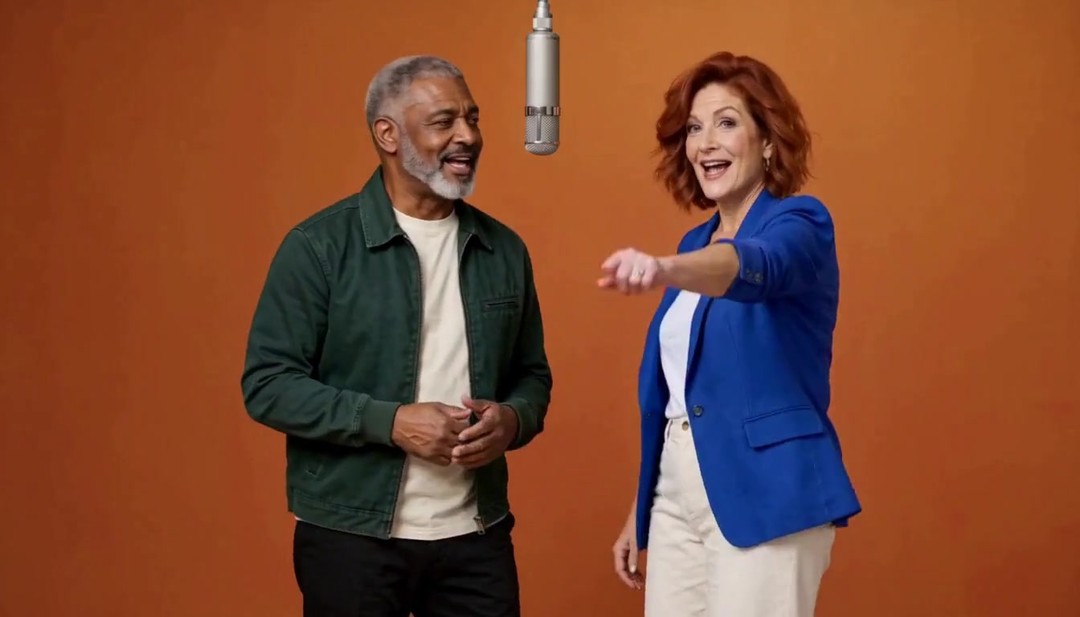
AI Gen Video turns a still photo into a short animated clip that follows a trend template. The generator reads the face and body in your picture, then renders you into a scene that moves — singing a duet in an orange-lit studio, performing on a stage, or meeting in a hug that never happened on camera.
These are short-form clips built for social feeds, not full scenes with dialogue and a plot. Think of them as motion posters: a few seconds, one clear action, sized for vertical or landscape feeds.
You are not editing footage — you are describing a result. Pick a trend, hand over a photo, and the model handles motion, framing and background.
What you need before you start
Nothing else is required. There is no app to install and no software to learn. If you are unsure whether a photo will work, run it through the free photo check first — it flags common problems before you spend any credits.
- One clear photo with the face and shoulders visible — a phone selfie in even light works well.
- A photo you own or are authorized to use. Do not upload pictures of people who have not agreed.
- For two-person trends, a second photo — one person per image.
- For AI Hug, one or two photos: a single frame showing both faces, or one photo per person.
- A free account, so your generations and credits are tied to your balance.
Step 1 — Upload and check your photo
Open the Create page and choose a trend, or start from a trend page and drop your photo into the upload slot. The image is uploaded, reviewed by an automated safety check, and prepared for generation.
This is the moment to catch problems. A blurry, tiny or heavily filtered photo will still generate — but the likeness will drift. If the photo check warns you about resolution or framing, swap in a better shot now rather than after you have spent credits.
- Use a sharp, recent photo rather than an old screenshot.
- Avoid group shots where the face is small.
- Keep one person per photo for duet-style trends.
Step 2 — Pick a trend
A trend is a template with a fixed style: a scene, a camera move and a mood. You choose one, and the generator applies that style to your photo. The four currently available trends are Hotel Lobby AI (two photos performing a duet), AI Rap (one photo as a solo rap performer in three scenes), Rap Duet (two photos performing on stage with audio) and AI Hug (one or two photos becoming a warm embrace in one of 14 scenes).
Pick by the input you have, not by the trend name. Duet trends want two photos; AI Rap needs exactly one; AI Hug accepts one shared frame or one photo per person. If you only have one photo of one person, AI Rap or AI Hug with a single frame are the natural starts.
Step 3 — Choose format and quality
Before generating, you pick a model, an aspect ratio and a quality tier. The model decides which resolutions exist: MiniMax H3 renders 768P and 2K, Seedance 2.5 renders 720P and 1080P. The format decides where the clip will look right: 9:16 for vertical feeds, 1:1 for square posts, 16:9 for landscape and YouTube. Together, the model and the resolution are the main things that change the credit cost.
Cost is per second of output, so a longer clip or a higher tier costs more. You can see the exact total update as you change the settings, before you commit. For a first run, a shorter clip at the entry tier is a sensible way to test whether the photo and trend pair well.
Not every trend renders every format. If only one aspect ratio appears, that template is locked to a single output shape.
Step 4 — Generate and download
Hit generate and the job enters the queue. Credits are held when the job starts and only captured when the video is delivered — if something goes wrong, the hold is released. If a generation fails outright, the system retries once automatically; if it fails again, your credits return in full.
When the clip is ready it appears in the result area and in your video library. Download it and post it directly, or keep it as a draft while you try other formats. Nothing disappears from your library unless you remove it yourself.
What the result looks like — and its limits
Expect a convincing short clip, not a perfect replica. The model preserves the general likeness of the face and body you gave it, but fine details can shift, hands and text can wobble, and fast motion is harder than slow motion. This is normal for generative video and part of why clips are kept short.
Trend videos work best when the action is simple and the framing is close. A single, clear movement reads far better than a busy scene. If a result disappoints, the fastest fix is usually a better input photo or a simpler trend — not a longer clip.
Make it a habit: iterate in small batches
The people who get the best results treat generation like a quick loop rather than a one-shot bet. Try one trend at one format, watch the result, and change one variable at a time — a cleaner photo, a different aspect ratio, a shorter length. Two or three small tries usually beat one expensive attempt.
Because failed generations are refunded and credits are only captured on delivery, the cheap way to explore is exactly this: small, quick, repeatable runs.
Common mistakes — and the fast fix
Almost every disappointing first attempt falls into one of a handful of predictable patterns. The fix is usually a small change to the input rather than a different trend, which is why it pays to recognise the pattern quickly.
- A tiny face in a group photo — crop in to a head-and-shoulders shot of just the subject before uploading.
- A heavy beauty filter — use an unfiltered photo; the model needs real facial texture to hold a likeness.
- A harsh shadow across half the face — reshoot in softer light, or pick another photo of the same person.
- A full-body dance requested from a headshot — match the trend to the framing, not the framing to the trend.
- A group photo where the wrong faces get picked — crop to the two people who matter before uploading.
Change one variable at a time. Two quick lower-tier tries almost always teach you more than one expensive guess.
What it costs to try
Exploring is cheap by design. Credits are held when a job starts and captured only when a video is actually delivered, so a generation that fails costs nothing. Preview at the lowest quality tier and the shortest length to test whether a photo and a trend pair well, then re-render the winner at a higher tier.
The exact total is shown before you generate and it updates as you change the format, quality and length, so there is never a surprise number at the end. If you want the arithmetic behind it, the credits guide walks through rate × length with worked examples.
What to do with your clip once it is ready
Finished videos land in your library, where they stay until you remove them. Download the file and post it directly, or keep it as a reference while you try a different format of the same photo.
Because the flow is repeatable, a single good photo can produce several distinct clips: vertical for a short-form feed, square for a cross-post, and another trend entirely if you want a different scene. There is no penalty for reusing the same photo across trends — you only spend credits on the generations you actually keep.
Frequently asked questions
Can I make a video from just one photo?
Yes. Single-subject trends render from one photo, duet-style trends need two photos, and AI Hug accepts one shared frame or one photo per person.
Do I need to write a prompt?
No. There is no prompt box. You pick a trend template and a format, and the generator applies that style. The only inputs are your photo, the trend, the aspect ratio and the quality tier.
How long are the finished videos?
Most trends generate clips of 4 or 12 seconds; AI Hug offers 4, 8 or 15 seconds.
What happens if I do not like the result?
You can generate again with a different trend, format or photo. Credits are only captured when a video is successfully delivered, and a generation that fails after the automatic retry is refunded in full.
Do I need to install an app?
No. The whole workflow runs in your browser on the Create page, from upload through to download.
Keep reading
Related guides
Put it into practice
Create a Video